TSD · Price labels
Shelf price labels from 1C, printed by phone
Yetar prints shelf price labels and barcode labels from an ordinary phone. A staff member scans a product on the shop floor and sees the 1C retail price, the date of that price and the 1C stock. One tap sends the label to the store’s label printer. The price is read from 1C, and printing writes nothing back to 1C.
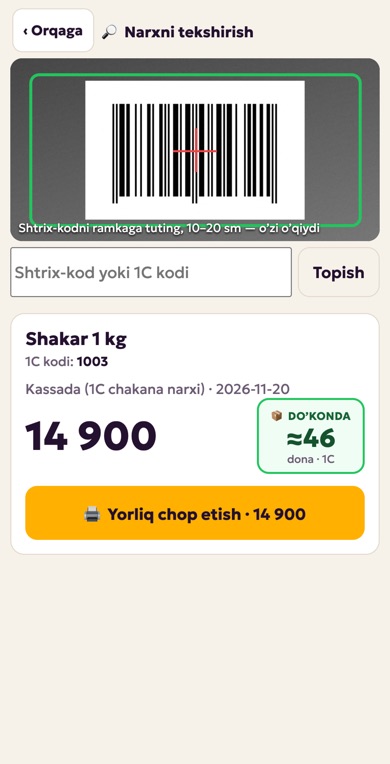
How a price label is printed from a phone
Scan the product
Point the phone camera at the barcode and it is read automatically. If the barcode is worn, type the 1C product code instead.
Check the price
The screen shows the name, the 1C code, the 1C retail price and its date, with the store’s 1C stock next to it.
Tap print
The label goes to the store printer and comes out straight away. Scan the next product at once, or build a list and print it all in one tap.
Put it on the shelf
The label carries the 1C retail price. If the tills also load prices from 1C, the shelf and the till show the same price.
Price check on the shop floor in one scan
The price-check screen shows, right on the shop floor, the price the till will charge. The price is labelled as the 1C retail price, with the date it was set in 1C. That is all you need to compare it with the label on the shelf.
Next to the price is the approximate store stock according to 1C. If 1C shows zero or negative stock while the product is in your hand, the screen warns you and offers to count it on the spot.
A product with no retail price in 1C gets no label: the screen shows that the price is missing and the print button stays disabled. A label with a blank or zero price never reaches the shelf.
Labels for a received invoice
After goods are received, labels can be printed without scanning every item again. The invoice-label screen («Yorliq · nakladnoy») lists the day’s receipts: supplier, invoice number, number of items and how many still need a label. You can also go back to earlier days, up to 14 days.
Open an invoice and each line shows the product and the received quantity. Tick the products you need, set the number of labels for each (1 to 200) and choose the type: barcode label or shelf price label. New products are marked separately.
- A product whose price is being updated is marked as such and is not printed, so no label with the old price comes out.
- For more than 50 labels, the phone asks you to check that the roll has enough labels left.
- Each invoice shows who printed how many labels and when.
- If the connection drops before a reply arrives, nothing is printed twice: printed lines are marked and you resend the rest.
Which printers work and what the labels look like
Yetar works with the ordinary thermal label printers stores already use. The printer is connected by USB to a store computer, and a small Yetar print program is installed on that computer. The phone sends the label to the Yetar server; the program collects it and passes it to the printer. If the printer is on the store network, the print program runs on the store server and sends labels to the printer over the network, with no USB cable needed.
Price labels and barcode labels each have their own printer, and the choice applies to every phone in the store at once. The layout is set up from the label the store already prints from 1C: size, product name, price, barcode, 1C code and date. If the stickers carry a pre-printed store logo, the text is placed around it. Labels for weighed goods can also show the scale code (PLU), refreshed from 1C every hour.
Printing labels from 1C keeps working as before: Yetar and 1C can share the same printer.
- Printers already working in stores: Xprinter (XP-410B, XP-470B, XP-303B), Rongta RP4xx and RP5xx, Godex G500, BIXOLON XD3-40d, TSC TTP-244.
- Shelf price labels: 35×60, 35×65, 40×60 and 40×65 mm.
- Barcode labels: 20×40 mm (four across on an 80 mm roll) or 30×20 mm.
When a price changes: price-change act, tills and shelf
In stores that manage price changes in Yetar, an approved new price is written to 1C as an unposted price-change act («Акт переоценки»). Posting stays on the 1C side, and Yetar never touches posted documents. In the last 14 days (15–28.11.2026), two stores posted 173 such price-change acts in 1C.
The new price does not go to the tills by itself. Where tills receive prices from 1C, the price is sent to them with a separate button after the act is posted. Until then the price-check screen warns that the new price is approved but not yet at the till, so the shelf label should not be changed yet. This keeps the shelf label from running ahead of the till.
What Yetar reads from 1C and writes to it
| Retail price | Read from 1C and printed on the label. Never changed by Yetar. |
|---|---|
| Stock | Shown on the price-check screen, read only. |
| Goods receipt | The invoice-label screen lists the day’s receipts. The receipt itself lands in 1C as an unposted draft. |
| Price-change act («Акт переоценки») | Only when the price is changed in Yetar: an unposted draft; posting stays in 1C. |
| Label printing | Nothing is written to 1C. |
Questions about price labels
Which printers can print the labels?
The store’s thermal label printer. Xprinter, Rongta, Godex, BIXOLON and TSC printers are working in stores today. The printer is connected by USB to a store computer running a small Yetar print program, or to the store network. We set up the printer and label size during onboarding. A new printer is usually not needed; the store’s existing label printer is connected.
Where does the price on the label come from?
From the retail price in the store’s 1C database. The phone shows it as the till price (1C retail price) together with its date in 1C. A product with no retail price gets no label: it stays on the list, and you print it once the price is set in 1C. Yetar does not invent prices and does not change them in 1C.
Can the label size and layout match ours?
Yes. During onboarding the layout is set up from the label the store already prints from 1C: size, product name, price, barcode, 1C code, date and store name. Stores typically use 35×60 to 40×65 mm shelf labels and 20×40 mm (four across) or 30×20 mm barcode labels. Stickers with a pre-printed logo are supported too.
How do I print labels quickly after receiving goods?
Open the invoice-label screen, which lists the day’s receipts. Choose the invoice, tick the products, set the number of labels for each and tap print. You choose between a barcode label and a shelf price label. There is no need to scan every product again.
What happens if the printer is off or the internet drops?
Labels are sent through the Yetar server, so both the phone and the computer with the printer need internet. If that computer is off or the print program is not running, the phone says the printer computer is offline and the label is not lost: the products stay on the list, and you send them again once the computer is on. The same label is never printed twice.
Does printing labels write anything to 1C?
No. For labels Yetar only reads from 1C: product name, barcode, retail price and stock. Yetar writes to 1C only when a price is changed in Yetar, and then only as an unposted «Акт переоценки» draft. Posting stays on the 1C side, and posted documents are never touched. Printing labels from 1C itself keeps working as before.
How much is this used in stores?
In the last 14 days (15–28.11.2026), the 18 stores running Yetar sent 17 048 labels from phones to their printers. In the same period two stores posted 173 price-change acts in 1C. Both receiving staff and shop-floor staff print labels; no separate handheld terminal (TSD) is needed, only an ordinary phone with a camera.
More of what Yetar does
- Goods receivingReceive goods with a phone camera. Yetar writes each receipt to 1C as an unposted draft and creates product cards for items 1C does not have yet.
- Expiry trackingStaff scan products on a phone and enter the nearest expiry date. Yetar checks the shelf against 1C stock and flags what will not sell before expiry.
- 1C integrationHow Yetar reads 1C data and writes unposted drafts: goods receipts, new product cards and stock counts. Dalion, Shtrih-M and a per-system support matrix.
- FeaturesThe TSD part runs in every store. The Pro layer adds ordering and management on request.
Get started
See a label printed from a phone
Book a demo. We will show the price check and label printing live and work out the right printer and label size for your store.
- The demo is free
- 1C and your software stay
- Live answers to your questions
Or contact us directly: